
The Fire TV Stick is a powerful device that transforms any television into a smart streaming hub. It provides easy access to a vast library of movies, shows, and applications. However, you may have encountered frustrations with content being unavailable in your region or concerns about your online privacy.
This is where a VPN, or Virtual Private Network, becomes an essential tool. If you’ve been wondering how to use a VPN on your Fire TV Stick, this guide will provide a clear, step-by-step process to unlock a more open and secure streaming experience.
- Create an account with a VPN service such as ExpressVPN.
- Go to the Amazon Fire TV Stick home screen and search for your chosen VPN service.
- Download and install the VPN app on your Fire TV Stick.
- Log in to the VPN app using the account credentials you created earlier.
- Select your preferred server location and connect to the VPN server.
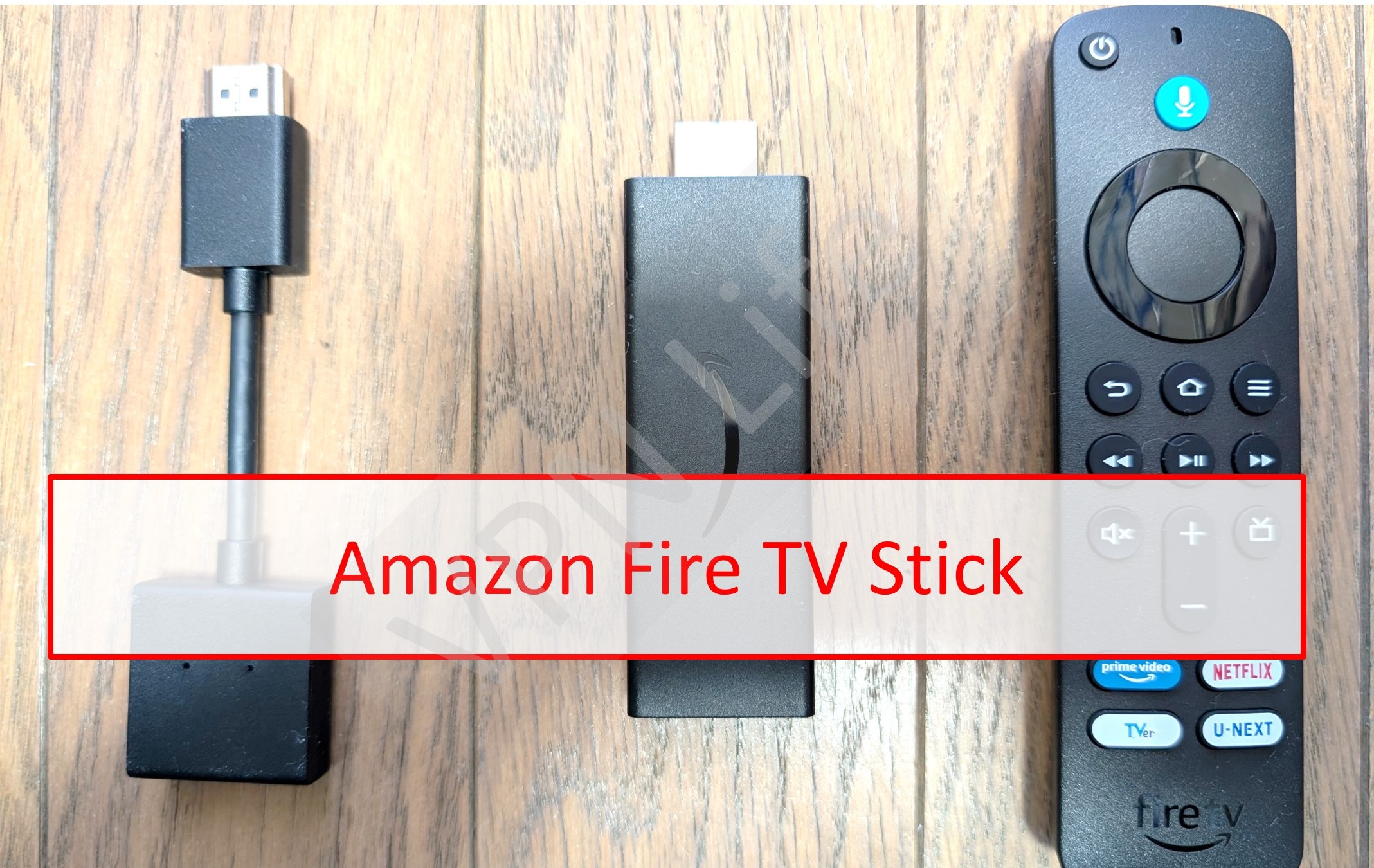


When Do You Need a VPN on a Fire TV Stick?
A VPN is a versatile tool, but for a Fire TV Stick, its benefits are primarily focused on two key areas: bypassing content restrictions and strengthening your digital privacy. Both scenarios stem from how your internet connection is identified and monitored.
- Bypass geographic content restrictions.
- Enhance your online privacy and security.
Bypass geographic content restrictionsーWhen Watching Geo-Restricted (Geo-blocked) Content
The most common reason for using a VPN with a Fire TV Stick is to bypass geographic restrictions, often called “geo-blocking.” Streaming services like Netflix, Hulu, BBC iPlayer, and others offer different content libraries in different countries. This is due to complex licensing and copyright agreements.
Your physical location is determined by your IP address, a unique number assigned to your internet connection. If you are in the UK, you get the UK content library. If you are in the US, you get the US library. A VPN allows you to route your internet connection through a server in another country. This masks your real IP address and replaces it with one from your chosen country. For example, by connecting to a US server, you can access US-specific streaming content from anywhere in the world. This is also extremely useful for travelers who want to access their home subscription services while abroad.
Enhancing Security and Privacy
A secondary but equally important benefit is the enhancement of your online security and privacy. A VPN creates an encrypted tunnel for all your internet traffic. This encryption prevents your Internet Service Provider (ISP) from seeing what you are streaming or browsing.
Without a VPN, your ISP can monitor your activity and may even “throttle,” or intentionally slow down, your connection speed if they detect high-bandwidth activities like streaming. Furthermore, if you use your Fire TV Stick on public or semi-public Wi-Fi networks, such as in a hotel, your data could be vulnerable to interception. A VPN encrypts this data, making it unreadable to any potential snoopers on the network.
3 Recommended VPNs for Fire TV Stick
To use a VPN on a Fire TV Stick, the provider must offer a dedicated application on the Amazon Appstore. Using a service without a native app is complicated and not recommended for most users. The following providers offer user-friendly, high-performance VPN services designed specifically for the Fire TV Stick.
| ExpressVPN | NordVPN | SurfShark | |
| Prices | 1-Month: $13.99 12-Months: $5.99/month 24-Months: $4.49/month | 1-Month: $11.99 12-Months: $4.99/month 24-Months: $3.99/month | 1-Month: $12.95 12-Months: $3.99/month 24-Months: $2.39/month |
| Money-back Guarantee | 30 days | 30 days | 30 days |
| Countries | 105 | 118 | 100 |
| Servers | 3,000+ | 7,000+ | 3,200+ |
| Maximum devices supported | 12 | 10 | Unlimited |
| Connection Speed | Ultra Fast | Fast | Fast |
| Security | AES-256 Kill Switch | AES-256 Kill Switch | AES-256 Kill Switch |
| Privacy | No-logging | No-logging | No-logging |
| Support | 24/7 Live Chat Support | 24/7 Live Chat Support | 24/7 Live Chat Support |
ExpressVPN: Ultra-fast Internet Speeds
| Prices | 1-Month: $13.99 12-Months: $5.99/month 24-Months: $4.49/month |
| Money-back Guarantee | 30 days |
| Countries | 105 |
| Servers | 3,000+ |
| Maximum devices supported | 12 |
ExpressVPN offers some of the fastest internet speeds among the VPNs we have used. All VPNs may slow down your internet connection, but ExpressVPN is one of the fastest, and you rarely notice the difference. Review sites consistently rank ExpressVPN as one of the fastest VPNs. Additionally, with over 3,000 servers in 105 countries, you have a wide choice of countries to change IP addresses to. Real humans are available 24-hour live chat support to help you with setup and troubleshooting. ExpressVPN also has a no-log policy.
After you’ve registered with ExpressVPN, you can use it to easily browse the internet just by downloading their app.
- Excellent speed and stability
- Fast and user-friendly app
- Strict no-logs policy
- Wide range of server countries
- Accepts Bitcoin payments
- Slightly more expensive than competitors
- Place a high importance on internet speed
\30 day Money-Back Guarantee/
NordVPN: The Ultimate Balance of Price and Internet Speed
| Prices (standard plan) | 1-Month: $11.99 12-Months: $4.99/month 24-Months: $3.99/month |
| Money-back Guarantee | 30 days |
| Countries | 118 |
| Servers | 7,000+ |
| Maximum devices supported | 10 |
NordVPN’s excellent service, and balance of price, internet speed, servers, and countries, has allowed it to gain the greatest market share in the world. Overall, NordVPN consistently receives great reviews from leading experts. NordVPN has more than 5,800 servers in 60 countries, so you also have a lot of choices for which country to change your IP address to. You can et help and advice from our friendly customer support team through email or live chat for your 24/7. And NordVPN also has a no-log policy.
After you’ve registered, you can easily browse the internet using NordVPN just by downloading their app.
- World's most popular VPN by new user subscriptions
- Large number of available servers
- Competitive pricing
- Strict no-logs policy
- User-friendly dedicated apps
- Accepts cryptocurrency payments
- Short-term plans can be relatively costly
- Want to balance price and internet speed
\30 day Money-Back Guarantee/
Surfshark: Impressive Performance with a Lower Price
| Prices (standard plan) | 1-Month: $12.95 12-Months: $3.99/month 24-Months: $2.39/month |
| Money-back Guarantee | 30 days |
| Countries | 100 |
| Servers | 3,200+ |
| Maximum devices supported | Unlimited |
Surfshark offers impressive performance with a lower price. You can get Surfshark much cheaper than other services if you apply for the 24-month plan. Furthermore, Surfshark has no connection limits. So, you and your family can connect and use all your devices simultaneously. Surfshark has more than 3,200 servers in 100 countries. Just like the other VPNs, you also have a lot of choices for which country to change your IP address to. Customer support experts are there for you 24/7, if you need a helping hand with them via live chat or email. And SurfsharkVPN also has a no-log policy.
After you’ve registered, you can easily browse the internet using Surfshark by downloading their app.
- Affordable price (cheaper than NordVPN & ExpressVPN)
- Unlimited simultaneous connections (ideal for families)
- Large number of available servers
- Speeds comparable to top-tier providers
- Strict no-logs policy
- Accepts cryptocurrency payments
- Less effective at bypassing geo-restrictions
- Limited service history / Less established
- Who are budget conscious and want to want to connect with lots of devices
\30 day Money-Back Guarantee/
How to Install a VPN on Fire TV Stick
The simplest way to set up a VPN is by downloading the provider’s official app directly from the Amazon Appstore.
- Amazon Fire TV Stick
- A stable internet connection
- An Amazon account set up on your Fire TV Stick
- A VPN account (such as ExpressVPN or NordVPN)
We recommend signing up and choosing a subscription plan on your VPN provider’s official website before starting the installation. Visit the official website here :
ExpressVPN:https://www.expressvpn.com/
NordVPN:https://nordvpn.com/
Installing and Setting Up a VPN on Amazon Fire TV Stick
Once you’re ready, go to the Amazon Fire TV Stick home screen.
Select Search, then type in the name of the VPN service you want to install.
From here, we’ll explain how to install each service — ExpressVPN and NordVPN.
Switch between the tabs to view the steps for each.
FAQ
Here are answers to some common questions about using a VPN with a Fire TV Stick.
Can I use a VPN on my Fire TV Stick in a hotel while traveling?
Yes, this is an excellent use case. Hotel Wi-Fi networks are often not secure, so a VPN will encrypt your connection and protect your data from other users on the network. It also allows you to connect to a server in your home country to access all the content you normally watch.
Can I use a Fire TV Stick bought in my home country on a TV abroad?
Yes. The Fire TV Stick hardware is not region-locked. As long as the television you are using has an HDMI port, the device will work. The content available to you, however, will be based on the IP address of the local Wi-Fi network. This is precisely why a VPN is useful, as it allows you to change your virtual location back to your home country.
What are the differences between Fire TV Stick versions from different countries?
The hardware itself is generally identical. The main differences are the default software settings, the apps that come pre-installed, and the content that is advertised on the home screen. These are all tied to the region of the Amazon account you use to register the device. For example, a device registered to a Japanese Amazon account will promote Japanese services, but the device can still be used anywhere.
Can I use a Fire TV Stick in China?
You can technically use a Fire TV Stick in China, but most streaming services and Amazon features are limited. The device itself works, but popular platforms like Netflix, Prime Video, and YouTube are not accessible without a VPN due to regional restrictions, known as the Great Firewall of China. Some users use a VPN to access global content, though this may require additional setup and a stable connection.
What should I do if I can’t watch videos even with a VPN connected?
This can happen if a streaming service has identified and blocked the specific IP address of the VPN server you are using. If you encounter this, try these troubleshooting steps:
- Disconnect from the VPN server and reconnect to a different server in the same country.
- If that fails, try clearing the cache of the streaming app.
Go to Settings > Applications > Manage Installed Applications > Find the app (e.g., “Netflix”) > Select “Clear Cache.” - Restart your Fire TV Stick.
Go to Settings > My Fire TV > Restart. - As a last resort, contact your VPN provider’s customer support. They can often tell you exactly which servers are confirmed to work with a specific streaming service.
Conclusion
Using a VPN on your Fire TV Stick significantly expands its capabilities, allowing you to access a global library of content while simultaneously protecting your online privacy. The setup process is surprisingly simple, thanks to the native apps provided by high-quality VPN services. By choosing a reputable provider, installing the app from the Amazon Appstore, and connecting to a server, you can enjoy a more open, secure, and flexible streaming experience on your television.
- Create an account with a VPN service such as ExpressVPN.
- Go to the Amazon Fire TV Stick home screen and search for your chosen VPN service.
- Download and install the VPN app on your Fire TV Stick.
- Log in to the VPN app using the account credentials you created earlier.
- Select your preferred server location and connect to the VPN server.