
The Apple TV provides a premium, high-quality streaming experience, bringing your favorite movies and shows to the big screen with ease. However, you might find that the content you want to watch is unavailable in your region, or perhaps you are concerned about your online privacy. This is where a VPN can be an invaluable tool.
Learning how to use a VPN on your Apple TV can unlock a world of content and secure your connection, but the setup process has historically been different from other devices. This guide will walk you through the modern, simple methods to get your VPN running on your Apple TV.
- Create an account with a VPN service such as ExpressVPN.
- Open the Apple TV home screen and search for your chosen VPN service.
- Download and install the VPN app on your Apple TV.
- Log in using the account credentials you created earlier.
- Select your preferred server location and connect to the VPN server.
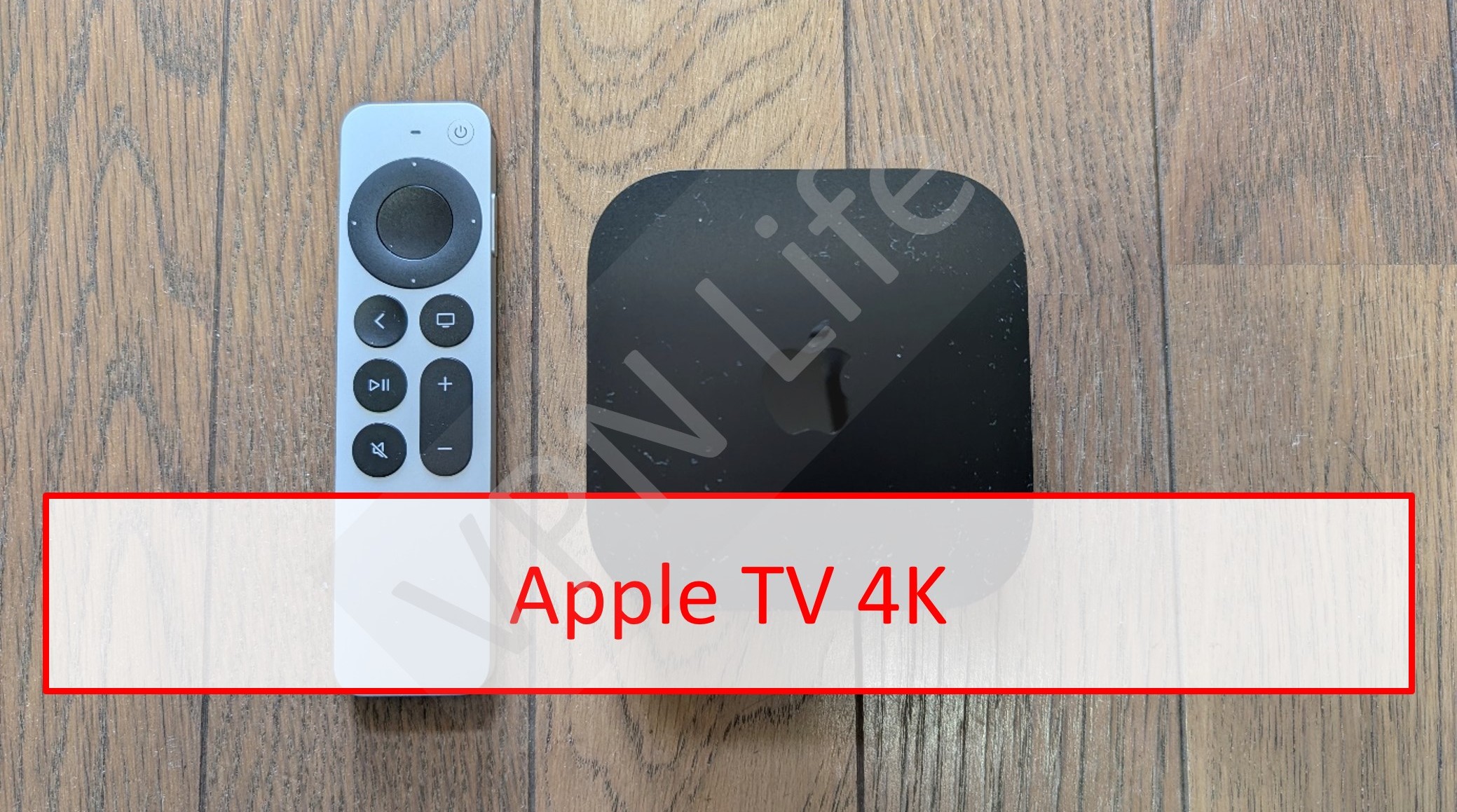


When You Need a VPN on Apple TV
Using a VPN with your Apple TV serves two main purposes: it lets you bypass geographic content restrictions and greatly enhances your online privacy and security.
- Bypass geographic content restrictions
- Enhance your online privacy and security
Bypass geographic content restrictionsーWhen Watching Geo-Restricted (Geo-blocked) Content
The most common reason to use a VPN is to access content that is restricted to specific countries. Streaming services like Netflix, Hulu, BBC iPlayer, and others have different content libraries for each region due to licensing agreements. Your location is determined by your IP address. A VPN masks your real IP address and assigns you a new one from a server in a country of your choice. By connecting to a US server, for example, you can access the American content library from anywhere in the world. This is also ideal for travelers who want to access their home subscription services while abroad.
Enhancing Security and Privacy
A VPN also provides a critical layer of security. It creates an encrypted tunnel for all your internet data. This means your Internet Service Provider (ISP) cannot monitor what you are streaming or browsing. This encryption prevents your ISP from throttling, or intentionally slowing down, your connection speed just because you are streaming. Furthermore, if you use your Apple TV on a public or semi-public network, like in a hotel, your data is vulnerable. A VPN encrypts this data, making it unreadable to anyone else on the network.
Recommended VPNs for Apple TV
Thanks to the tvOS 17 update, Apple TV now supports native VPN applications, making the setup process incredibly simple. The following 3 VPN services offer high-quality, user-friendly apps directly on the tvOS App Store.
| ExpressVPN | NordVPN | SurfShark | |
| Prices | 1-Month: $13.99 12-Months: $5.99/month 24-Months: $4.49/month | 1-Month: $11.99 12-Months: $4.99/month 24-Months: $3.99/month | 1-Month: $12.95 12-Months: $3.99/month 24-Months: $2.39/month |
| Money-back Guarantee | 30 days | 30 days | 30 days |
| Countries | 105 | 118 | 100 |
| Servers | 3,000+ | 7,000+ | 3,200+ |
| Maximum devices supported | 12 | 10 | Unlimited |
| Connection Speed | Ultra Fast | Fast | Fast |
| Security | AES-256 Kill Switch | AES-256 Kill Switch | AES-256 Kill Switch |
| Privacy | No-logging | No-logging | No-logging |
| Support | 24/7 Live Chat Support | 24/7 Live Chat Support | 24/7 Live Chat Support |
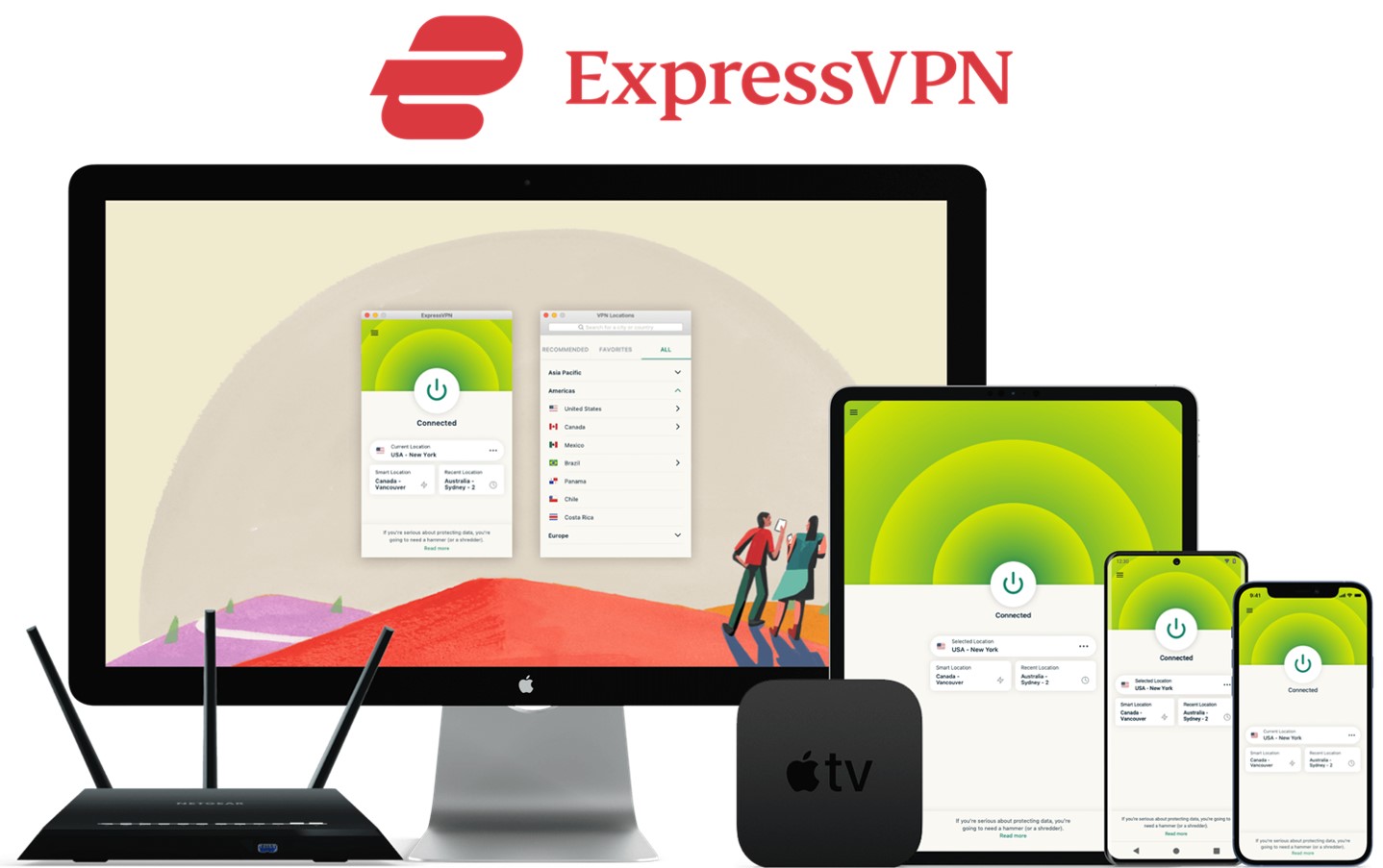
ExpressVPN: Ultra-fast Internet Speeds
| Prices | 1-Month: $13.99 12-Months: $5.99/month 24-Months: $4.49/month |
| Money-back Guarantee | 30 days |
| Countries | 105 |
| Servers | 3,000+ |
| Maximum devices supported | 12 |
ExpressVPN offers some of the fastest internet speeds among the VPNs we have used. All VPNs may slow down your internet connection, but ExpressVPN is one of the fastest, and you rarely notice the difference. Review sites consistently rank ExpressVPN as one of the fastest VPNs. Additionally, with over 3,000 servers in 105 countries, you have a wide choice of countries to change IP addresses to. Real humans are available 24-hour live chat support to help you with setup and troubleshooting. ExpressVPN also has a no-log policy.
After you’ve registered with ExpressVPN, you can use it to easily browse the internet just by downloading their app.
- Excellent speed and stability
- Fast and user-friendly app
- Strict no-logs policy
- Wide range of server countries
- Accepts Bitcoin payments
- Slightly more expensive than competitors
- Place a high importance on internet speed
\30 day Money-Back Guarantee/
NordVPN: The Ultimate Balance of Price and Internet Speed
| Prices (standard plan) | 1-Month: $11.99 12-Months: $4.99/month 24-Months: $3.99/month |
| Money-back Guarantee | 30 days |
| Countries | 118 |
| Servers | 7,000+ |
| Maximum devices supported | 10 |
NordVPN’s excellent service, and balance of price, internet speed, servers, and countries, has allowed it to gain the greatest market share in the world. Overall, NordVPN consistently receives great reviews from leading experts. NordVPN has more than 5,800 servers in 60 countries, so you also have a lot of choices for which country to change your IP address to. You can et help and advice from our friendly customer support team through email or live chat for your 24/7. And NordVPN also has a no-log policy.
After you’ve registered, you can easily browse the internet using NordVPN just by downloading their app.
- World's most popular VPN by new user subscriptions
- Large number of available servers
- Competitive pricing
- Strict no-logs policy
- User-friendly dedicated apps
- Accepts cryptocurrency payments
- Short-term plans can be relatively costly
- Want to balance price and internet speed
\30 day Money-Back Guarantee/
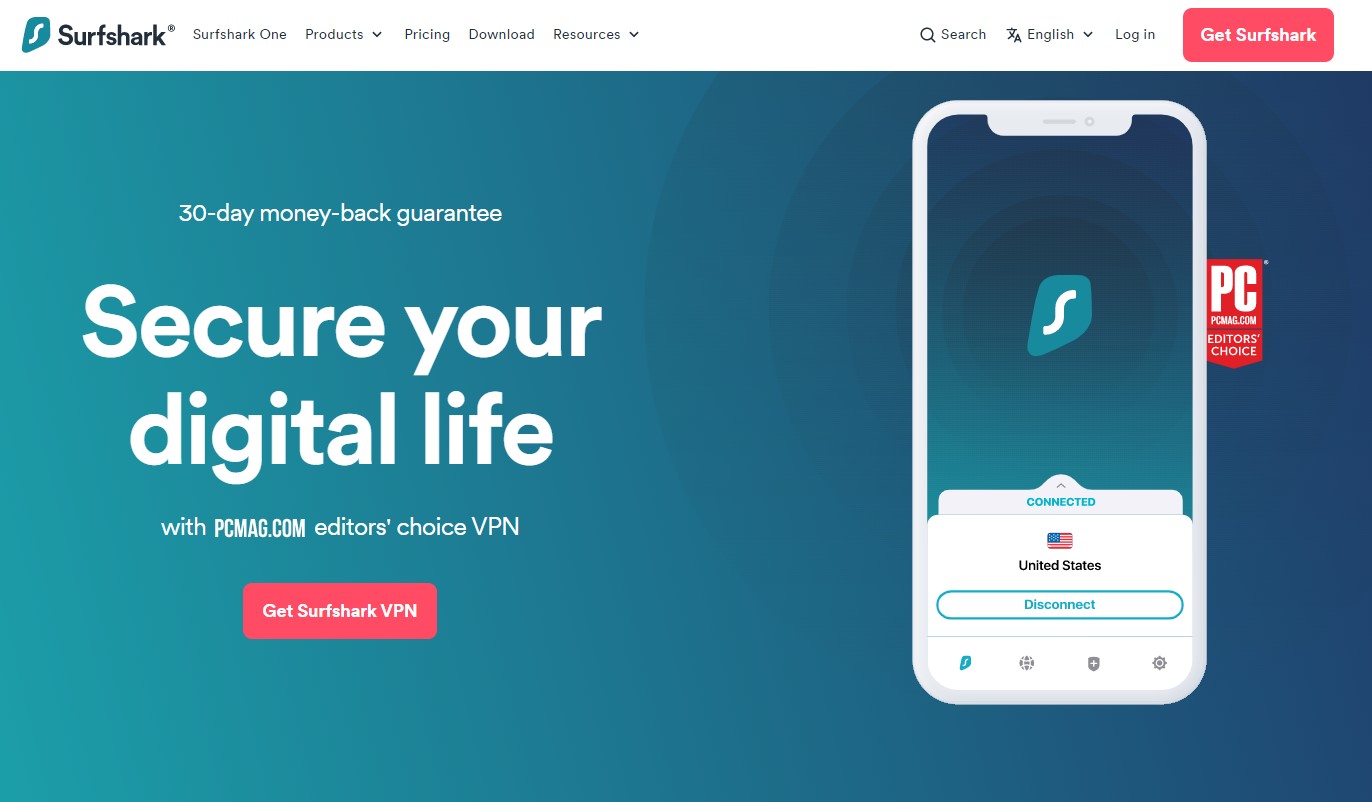
Surfshark: Impressive Performance with a Lower Price
| Prices (standard plan) | 1-Month: $12.95 12-Months: $3.99/month 24-Months: $2.39/month |
| Money-back Guarantee | 30 days |
| Countries | 100 |
| Servers | 3,200+ |
| Maximum devices supported | Unlimited |
Surfshark offers impressive performance with a lower price. You can get Surfshark much cheaper than other services if you apply for the 24-month plan. Furthermore, Surfshark has no connection limits. So, you and your family can connect and use all your devices simultaneously. Surfshark has more than 3,200 servers in 100 countries. Just like the other VPNs, you also have a lot of choices for which country to change your IP address to. Customer support experts are there for you 24/7, if you need a helping hand with them via live chat or email. And SurfsharkVPN also has a no-log policy.
After you’ve registered, you can easily browse the internet using Surfshark by downloading their app.
- Affordable price (cheaper than NordVPN & ExpressVPN)
- Unlimited simultaneous connections (ideal for families)
- Large number of available servers
- Speeds comparable to top-tier providers
- Strict no-logs policy
- Accepts cryptocurrency payments
- Less effective at bypassing geo-restrictions
- Limited service history / Less established
- Who are budget conscious and want to want to connect with lots of devices
\30 day Money-Back Guarantee/
How to Install a VPN on Apple TV
With the release of tvOS 17, installing a VPN is as easy as installing any other app. This method works for Apple TV 4K and later models running tvOS 17 or newer.
Before you start the installation, make sure you have the following ready.
- Apple TV
- HDMI cable
- A stable internet connection
- An Apple ID set up on your Apple TV
- A VPN account (such as ExpressVPN or NordVPN)
We recommend signing up and choosing a subscription plan on your VPN provider’s official website before starting the installation. Visit the official website here :
ExpressVPN:https://www.expressvpn.com/
NordVPN:https://nordvpn.com/
Installing and Setting Up a VPN on Apple TV
Once you’re ready, go to the Apple TV home screen.
Select Search, then type in the name of the VPN service you want to install.
From here, we’ll explain how to install each service — ExpressVPN and NordVPN.
Switch between the tabs to view the steps for each.
The screen will then switch to the VPN app’s main interface on your TV.
Be noted, If you have an older Apple TV model that does not support tvOS 17, you cannot install native VPN apps. For these devices, you must use an alternative method, such as your VPN’s Smart DNS feature or by installing the VPN directly onto your home’s Wi-Fi router. These methods are more technical and you should consult your VPN provider’s website for specific instructions.
FAQ
Here are some common questions regarding the use of a VPN with Apple TV.
Can I use a VPN on my Apple TV in a hotel while traveling?
Yes, and it is highly recommended. Hotel Wi-Fi networks are often unsecured. Using a VPN app on your Apple TV will encrypt your connection, protecting your data. It also allows you to connect to a server in your home country, letting you access your familiar streaming libraries just as if you were at home.
Can I use an Apple TV bought in my home country on a TV abroad?
Yes. The Apple TV hardware itself is not region-locked. As long as the television you are using has an HDMI port, the device will function. The content you can access, however, will be determined by the local IP address of the network you are on. This is why a VPN is so useful, as it allows you to change your virtual location back home.
What are the differences between Apple TV versions from different countries?
While Apple TV hardware is essentially the same worldwide, the main differences come from software and regional settings. The available streaming apps, App Store content, and featured shows depend on the country linked to your Apple ID. For example, an Apple TV set up with a US Apple ID will highlight US-based services. Some users choose to use a VPN to access content or apps that are restricted in their region.
Can I use an Apple TV in China?
You can technically use an Apple TV in China, but some features and streaming apps may be limited. The Apple TV hardware works normally, but services like Apple TV+, iTunes Movies, and many third-party streaming apps are not officially available due to regional restrictions. Some users use a VPN to access content from other regions, but this may require additional setup and a stable network connection.
What should I do if I can’t watch videos even with a VPN connected?
This usually occurs when a streaming service has identified and blocked the IP address of the VPN server you are using. The first step is to disconnect from the VPN and reconnect to a different server in the same country. If this does not work, try restarting your Apple TV. You can also check within your VPN app’s settings to see if you can change the connection protocol. If you continue to have issues, contacting your VPN’s customer support is the best course of action, as they can often provide a list of specific servers that are confirmed to be working with that streaming service.
Conclusion
Using a VPN with an Apple TV is now a simple and highly beneficial process. Thanks to the support for native apps in tvOS 17, the days of complicated router configurations or Smart DNS setups are over for most users.
A VPN not only secures your internet connection and protects your privacy from your ISP and on public networks but also unlocks a global catalog of content. By choosing a quality VPN provider that offers a dedicated tvOS app, you can enhance your streaming experience in just a few clicks.
- Create an account with a VPN service such as ExpressVPN.
- Open the Apple TV home screen and search for your chosen VPN service.
- Download and install the VPN app on your Apple TV.
- Log in using the account credentials you created earlier.
- Select your preferred server location and connect to the VPN server.